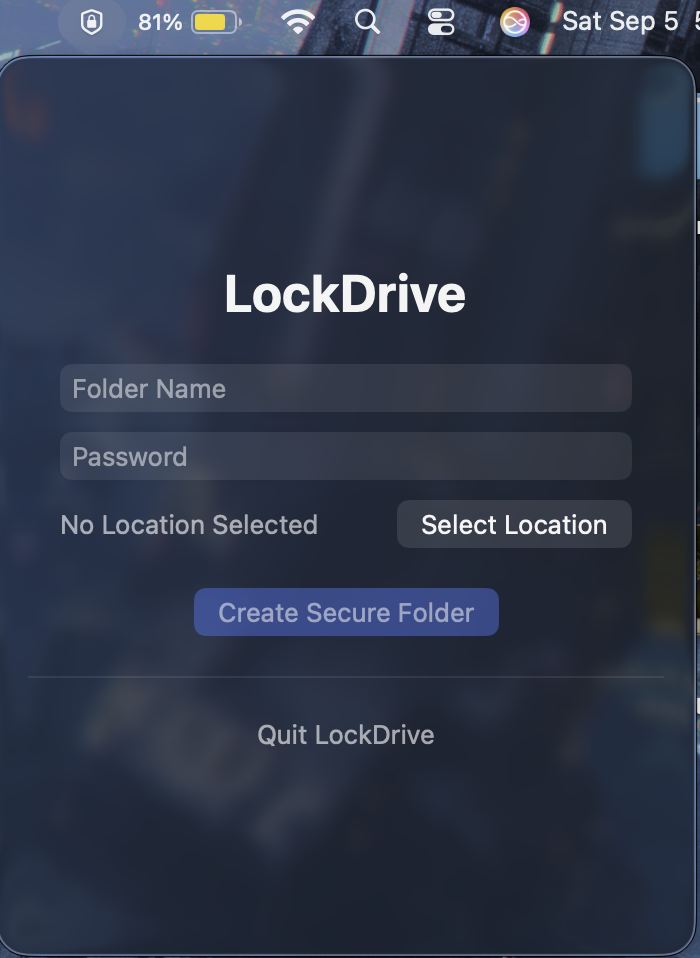
LockDrive started with a simple idea: protecting personal files should feel approachable. I wanted a small, native Mac app that puts the essentials in one place, without making the interface feel like another thing to learn.
I built it with Swift and SwiftUI. It lives in the menu bar, so opening it brings up a compact window instead of a full desktop app. The current flow is simple: give your secure folder a name, enter a password, choose where to save it, and hit Create Secure Folder.
Underneath, LockDrive calls macOS’s built-in hdiutil tool to create an encrypted disk image. The code requests AES-256 encryption and an APFS sparse bundle. The app handles the interface around that process, keeping the disk-image setup out of the way.
One detail I cared about was how the password reaches the tool. It goes through standard input rather than being included in the command’s arguments. SwiftUI’s SecureField masks it while you type, and the app clears the password field after a successful creation.
This version creates an encrypted container for files and folders; it doesn’t automatically encrypt an existing folder or an entire drive in place. Making those workflows easier to navigate is part of the direction I’m exploring as LockDrive develops.
It’s still a work in progress, but the goal is clear: a privacy-focused tool that feels at home on macOS and makes a useful built-in capability easier to reach.